1. A .tfvars file is a Terraform configuration file that is used to set variable values that are required by a Terraform module or configuration. Here are some of the possible use cases for a .tfvars file:
- Storing sensitive data: A .tfvars file can be used to store sensitive data like passwords, access keys, and other secrets that are required by the Terraform module. By storing this data in a separate file, it becomes easier to manage and secure sensitive data.
- Setting variable values: Terraform modules and configurations often require variable values to be set. A .tfvars file can be used to set these values in a centralized location, making it easier to manage and update them.
- Defining multiple environments: A .tfvars file can define variable values for different environments, such as development, testing, and production. This allows for easy deployment and testing across different environments, without the need to manually update variable values.
- Sharing variable values: A .tfvars file can be used to share variable values with other team or organisation members. By keeping variable values in a separate file, it becomes easier to share and collaborate on Terraform configurations.
- Keeping configurations versioned: By storing variable values in a separate .tfvars file, it becomes easier to keep track of changes to the Terraform configuration. This allows for better version control and ensures that changes to the configuration can be easily tracked and rolled back if necessary.
2. How to Use .tfvars Files in Terraform for Effective Variable Management?
Terraform is a popular tool for managing infrastructure as code. One of the essential aspects of using Terraform is managing variables that define the infrastructure configuration. While there are several ways to manage variables, .tfvars files are the most common and effective way to do so due to their simplicity.
In this article, we'll provide a hands-on guide to managing variables in Terraform with .tfvars files. We'll set up a project to spin up an EC2 instance and explore how to declare and manage variables. We'll also include code snippets and a git repository to refer to at each step. By the end of this article, you'll have a better understanding of how to manage variables in Terraform with .tfvars files and be able to apply this knowledge to your own infrastructure projects.
If you want to change the instance type for the production environment only, you can use a .tfvars file to set the variable value for the production environment. Here's an example of how to do this:
- Create a new .tfvars file specifically for production. You can name it something like production.tfvars. In production.tfars file set the value of the instance_type variable to the new instance type that you want to use for production. For example:
instance_type = "t2.large"
2. When you apply the Terraform configuration, use the -var-file option to specify the production.tfvars file. For example:
terraform apply -var-file=production.tfvars
3. Assigning a value through the command line using -var flag.
terraform plan -var="instance_type=t2.large"4. Using environment variables to set a value.
TF_VAR_instance_type="t2.small" terraform plan3. More about .tfvars files
Introducing .tfvars files [Practical]
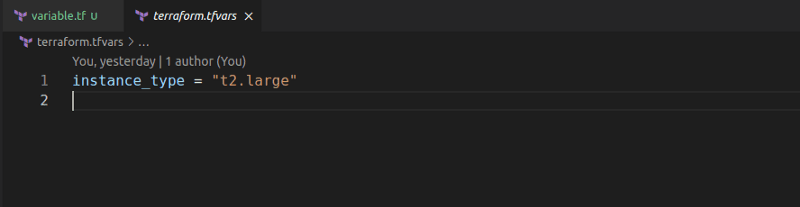
Let’s assign the variable a value using the terraform.tfvars file:
- We will start by creating a file named terraform.tfvars.
- Next, we will assign the instance_type variable a value in this file.

Add-terraform-tfvars-file-github-code
- Let us see if Terraform picks the assigned value in terraform.tfvars file when we run terraform plan. Remember the default instance_type variable value is t2.micro and value assigned in terraform.tfvars file is t2.large.

- Notice that not only did Terraform load the value from the terraform.tfvars file, but it also overwrote the default value assigned to the variable.
Halfway there
Great! We solved the problem of manually writing large commands and making edits to those commands. But the other half of the problem remains, the problem of managing different versions of the variable values for different environments.
Some questions to think about:
- Should we manually edit the tfvars file every time we deploy to a different environment?
- Would this solution scale for 10-20 variables with frequent deployments to various environments?
Continuously updating the tfvars file may become tiresome.
What if we created multiple files like test.tfvars, staging.tfvars, production.tfvars, and then passed these variables into Terraform at runtime.
- Let’s create two versions of the tfvars file by the name dev.tfvars and prod.tfvars
- We will set the instance_type as t2.large for dev version and t2.xlarge for production.

- Let’s try running
terraform planagain and see which version terraform picks up by default. Take a guess before you run this command 😉

- It picked neither of the versions we defined; it actually went with the t2.micro default value that is assigned to the variable.
How do we ask Terraform to use either of our versions then?
This can be done using the -var-file flag to specify the tfvars file to load. For instance, to load the production version, we will use the following command.
terraform plan -var-file=”prod.tfvars”Autoloading tfvars file
Terraform auto loads tfvars files only when they are named terraform.tfvars or terraform.tfvars.json.
Is it possible to ensure that tfvars files following custom naming schemes are loaded automatically?
It is in fact possible to name your file whatever you wish and have Terraform load it automatically. All we have to do is provide the file name with .auto.tfvars as an extension. Let’s try it out.
We will rename the dev.tfvars file to dev.auto.tfvars and run terraform plan on it. The expectation is that Terraform should automatically pick the value t2.large from the dev.auto.tfvars file instead of the default value t2.micro.
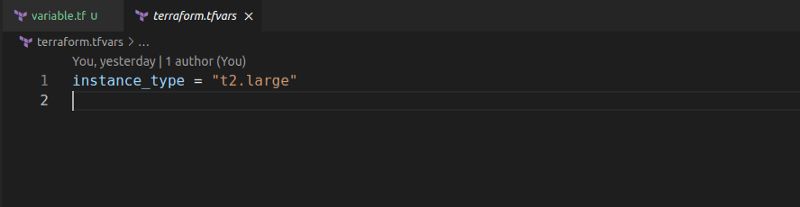

We notice that Terraform automatically loads out our dev.auto.tfvars file as expected.
Terraform can load variable definitions from these files automatically if:
- Files named exactly terraform.tfvars or terraform.tfvars.json.
- Any files with names ending in .auto.tfvars or .auto.tfvars.json.
An interesting thing to ponder is the precedence of the various methods of providing variable values.
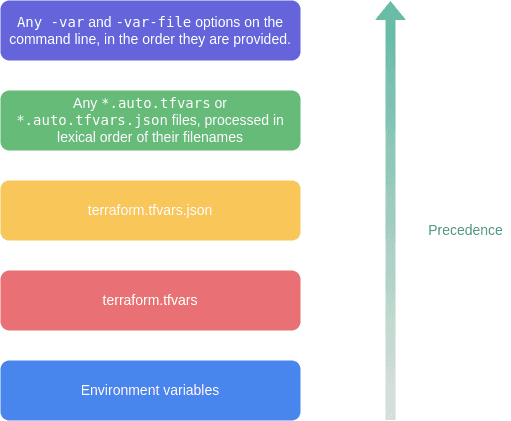
A typical Terraform project can have 10-20 variables. With this in mind, it becomes a priority to better manage the structure by logically separating all variables in a single place.
This way, we can easily declare and find variables in a single place.
Terraform recommends this single place be the variables.tf file.
Let us quickly extract the instance_type variable we created in the main.tf file into a new file named variable.tf file.
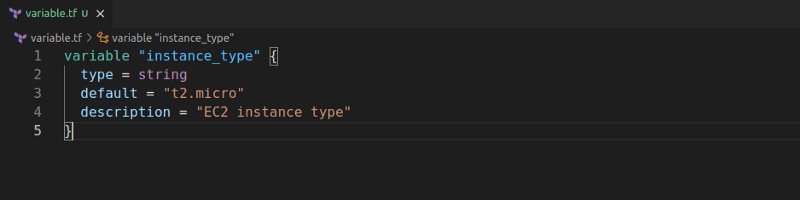
Remember that variable.tf is like any other Terraform file; there is nothing special about it, and it is only used as a way to logically separate variable declaration into a separate file.
Do not confuse terraform.tfvars files with variable.tf files. Both are completely different and serve different purposes.
- variable.tf are files where all variables are declared; these might or might not have a default value.
- variable.tfvars are files where the variables are provided/assigned a value.
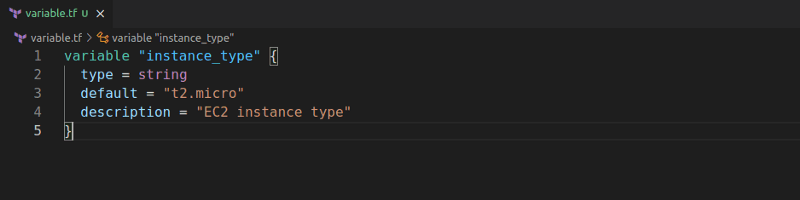
The difference becomes clear if we try assigning the variable a value that is not declared in the variable.tf file.
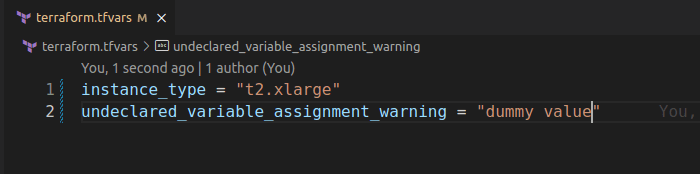
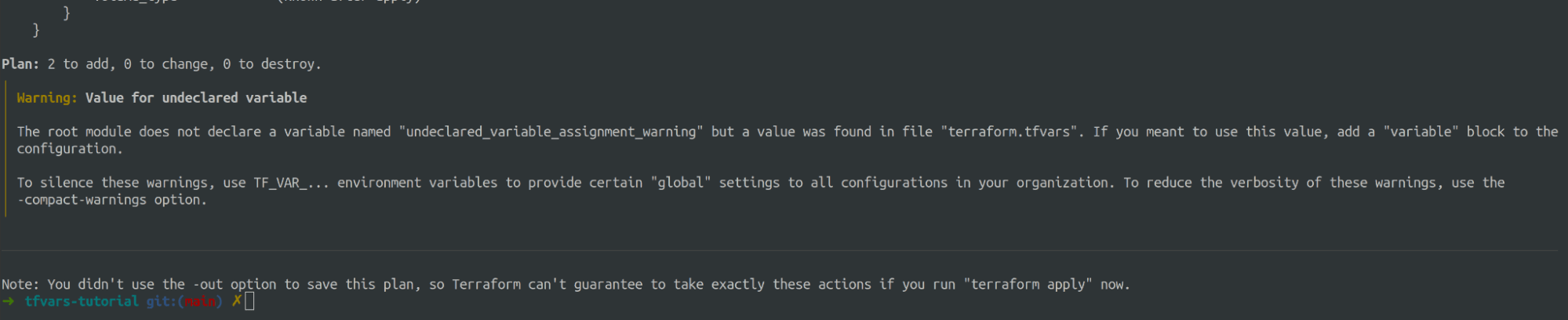
We notice that terraform raises a warning about assigning a value to an undeclared variable.
We conclude the difference as that the variables.tf just declare valid variables and optionally their types, and the tfvars file assigns them values.
Using .tfvars in Terraform Cloud:
- 1. Create a new workspace in Terraform
Cloud or navigate to an existing one.
- 2. Open the workspace's settings page and
click on the "Variables" tab.
- 3. Click on the "Create
variable" button and fill in the form with the following information:
·
"Variable
key": The name of the variable in the Terraform configuration file. For
example, if you have a variable called "region" in your main.tf file,
the variable key should be "region".
·
"Sensitive":
Check this box if the variable contains sensitive information, such as
passwords or API keys.
·
"Variable
value": The value of the variable. For example, if the region is
"us-west-2", the variable value should be "us-west-2".
4. 4. To use a .tfvars file, create a new
variable with a key of "TF_VAR_file_name" where "file_name"
is the name of the .tfvars file. For example, if your .tfvars file is named
"variables.tfvars", the variable key should be "TF_VAR_variables_tfvars".
5. Upload the .tfvars file by clicking on
the "Edit" button next to the "Variable value" field and
selecting the .tfvars file from your local machine.
6. Save the variable by clicking on the
"Create variable" button.
7. In your main.tf file, reference the
variable by wrapping the variable name in "${var.variable_key}". For
example, if your variable key is "region", you would reference it in
your main.tf file as "${var.region}".
That's it!
Now, Terraform Cloud will use the values from your .tfvars file when you run
the "terraform apply" command. Remember to keep your .tfvars files
secure and do not commit them to your version control system.
